Collect applications with move-in dates up to 12 months out

Applicants can now choose a desired move-in date up to 12 months away on the rental application. This is up from the original 4 months. This gives you room to collect applications well ahead of when a unit becomes available.

For a property near a university, that means you can list a unit for next summer and take applications from students who make their housing decisions 6 to 9 months in advance.

Where to find it: Rental Application > Move-in date.

💡 More on collecting applications before a unit is listed → How to collect applications for off-market units

Stay on a call while you move to other pages in RentEngine

You can now keep a call going while you move to other parts of RentEngine. The call stays connected and the call controls stay on screen, so you can look up a unit, an application, or a showing without hanging up.

When a prospect asks a question, that means you can click over to find the answer and come back to the conversation without the call dropping.

Note: you still need to be in the Command Center to start or answer a call.

Where to find it: Command Center > start or answer a call, then click to any other page.

💡 More on calling from RentEngine → How the phone system works in RentEngine

Use Command Center 2.0 from your phone in the mobile app

The updates we shipped to Command Center 2.0 last week are now in the RentEngine mobile app. Open tasks show with an orange outline on the conversation. Inside the thread a "Needs attention" banner explains why, with a Resolved button once you have handled it. Also, a new filter shows only conversations with an open task.

Hot Leads and prospects with an upcoming showing now have an icon next to their name, so you can spot both from the conversation list. Prescreening results now show in Prospect Info, and prospect emails appear in the same thread as their texts and calls.

You can also swipe left on a conversation to archive it, or press and hold to mark a Hot Lead, resolve, snooze, or set a reminder without opening the thread. A new sort control switches between Most urgent and Newest.

For an agent between showings, that means easily opening the app, sorting by Most urgent, and working through open tasks.

💡 New to the app? → Download the RentEngine mobile app

💡 See everything that is new in Command Center 2.0 → Product Updates: Week 39

Stay on a call while you move to other pages in RentEngine

You can now keep a call going while you move to other parts of RentEngine. The call stays connected and the call controls stay on screen, so you can look up a unit, an application, or a showing without hanging up.

When a prospect asks a question, that means you can click over to find the answer and come back to the conversation without the call dropping.

Note: you still need to be in the Command Center to start or answer a call.

Where to find it: Command Center > start or answer a call, then click to any other page.

💡 More on calling from RentEngine → How the phone system works in RentEngine

Sign in to RentEngine with your Google or Microsoft account

You can now sign in to RentEngine with Google or Microsoft. Pick the account that matches the email on your RentEngine user, and you are in.

That means one less password for you and your team to create, remember, and reset. If your company already runs on Google Workspace or Microsoft 365, everyone signs in to RentEngine the same way they sign in to their email.

For a new leasing agent joining your team, that means accepting their invite and signing in with the company account they already have. No setting up a separate RentEngine password first.

Search rental applications by full name

You can now search rental applications by an applicant's full name, not just one name. Search "Maria Lopez" and you get Maria Lopez, instead of every Maria and every Lopez on your account.

Where to find it: Rental Applications > search bar.

Choose which Trusted Contacts can get SentriLock shackle codes

You can now turn shackle code access on or off for each Trusted Contact. With it off, that contact cannot request a shackle code. The "-s" instruction for shackle codes no longer appears in the welcome text we send them. They can still text a serial number for a lockbox code.

For a vendor who only ever needs to get into the unit, that means they can open the lockbox but cannot remove it from the property.

Existing Trusted Contacts keep shackle code access unless you turn it off.

Where to find it: Lockboxes > Trusted Contacts > edit a contact.

Capture walk-ins and log completed showings from the thread

When you add a prospect, you can now fill in their prescreening answers in the same step.

You can also log a showing that was never booked in RentEngine, such as a walk-in you showed the unit to on the spot, a tour you arranged over the phone, or a unit the owner showed themselves.

You can log it right away or once you are back at your desk, and date it to when the showing actually happened. Choose Showing Completed from the Action menu, add the time, showing type, and agent, and add their feedback.

Where to find it: Command Center > Inbox > Add Prospect. To log a showing: open the conversation > Action > Showing Completed.

Notifications

A new bell shows a dot whenever a conversation needs you, with a list of those conversations one click away.

Calls stay connected when you leave the Command Center

When you are on a call, you can now move to any other page in RentEngine and the call stays connected. The call controls will stay on the screen.

If a prospect asks where their application stands, you can open Rental Applications and check while they are still on the line.

Where to find it: Start or answer a call in the Command Center, then go to any other page.

Mark prospects as “Hot Leads” and feature a listing to prioritize its prospects

You can now mark any prospect as a Hot Lead from the conversation menu, and turn on Hot leads only to filter your Command Center views down to them.

When your Inbox is full of new inquiries, it is easy for the prospects most likely to sign to get buried. Marking them as Hot Leads keeps them one click away. Also, because we show the Hot Lead marker next to their name in the Inbox, on the Board, and in the conversation, everyone on your team can see who to prioritize.

For example, if a prospect loved the unit on their tour and asked about the application, you can mark them as a Hot Lead and check in on them first thing each morning until they apply.

To prioritize a whole property, click the star next to it on the Properties page to make it a Featured Listing. Every prospect on that unit then shows as a Hot Lead, and any new lead on it raises a task escalation.

Where to find it: Hot Leads: the menu on any conversation in the Inbox or Board. Featured Listings: Properties > the star in a unit's Actions column.

Send and receive emails with prospects, right in the Command Center

When a prospect emails you, you now see their email in the same thread as your texts and calls, and you can reply from there. You can switch between Text and Email in the composer bar, and we save a draft of whatever you were typing when you switch. When you start a new message, we set it to whichever channel the prospect last used.

When the conversation moves from text to email or back, we add a short divider to the thread so you can see where it switched.

We send emails from your team's account, so nothing gets dropped, even when someone is on vacation. You can also CC and BCC others on your emails and add attachments. When a prospect emails you a document, you can find it in the new prospect panel on the right.

Set your filters once, and see them everywhere you work

You can now set up permanent filters in your Command Center filters. The same filters apply across the Inbox, the Board, the mobile app, and the notifications you get.

You can filter by:

  • Property: one or more units, or a whole multifamily building at once
  • Agent and sub-team: your own leads, specific agents, a sub-team, or everyone
  • Lead type: prospects, current tenants for occupied showings, real estate agents, owners, and more
  • Status and date range: any leasing stage, for leads that came in over the time window you choose
  • Hot leads
  • Unassigned leads, unregistered callers, leads with no follow-up scheduled, and archived conversations: show or hide each one
  • Account: if your company runs more than one RentEngine account, you can see them all in one Command Center

Agents start on their own prospects and subteams, and admins start with the whole account. You can widen or narrow either view at any time.

An agent on a subteam can hide unregistered callers and leave those to the receptionist or RentEngine AI, so their own list stays focused on their leads.

Where to find it: Command Center > Filters, at the top of the page.

Use Tasks to create action items for your team

You can now choose which situations need someone on your team to step in, and we turn each one into a Task. For example, an admin can set it up so that any missed call or canceled showing creates a Task for a team member to call that prospect.

A conversation with an open Task gets an orange border in the Inbox and on the Board, and we show the reason in place of the last message. When you open it, you see a banner above the thread explaining what happened and which property it is about.

We clear the Task once you reply or handle the action, or you can click Resolved to clear it yourself. Either way, it clears for everyone on your team, and if you resolve one by mistake, you can undo it.

There are 14 types of Tasks in this release, with more coming soon. We have already turned on six for you: unanswered messages, missed calls, AI escalations, and showing approvals, manual follow-up scheduled, pending showing approval.

Enable “Has open task” at the top of the Command Center to see only the conversations with an open Task. Tasks are visible to every agent associated with that property, not only the prospect's assigned agent.

Where to find it: Settings > Communication > Task Escalations.

Switch between an Inbox and a Board view

You can now see your prospects in the Command Center in two ways: as an Inbox of conversations, or as a Kanban-style Board that groups them by leasing stage. Use the toggle at the top of the page to switch between them.

💡 Keyboard shortcuts: We have also added keyboard shortcuts to the Command Center. Press i to open the Inbox, b to open the Board, or / to jump to search.

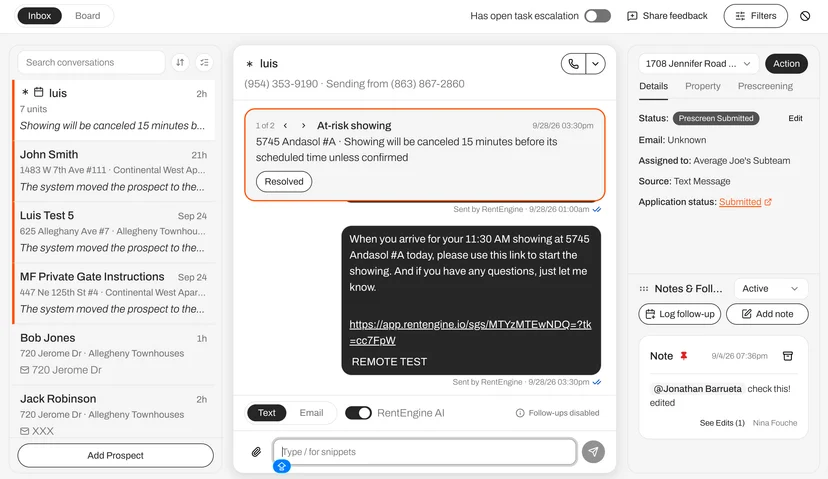
The Inbox is where you reply. You get one row per person, even when they are interested in several units. The Most urgent sort pins anything with an open task to the top. An orange left border marks any conversation that has an unanswered message or an open task, and it clears as soon as you reply or resolve the task. Next to it, a Showings panel lists every upcoming showing by day, and clicking a prospect's name opens their conversation.

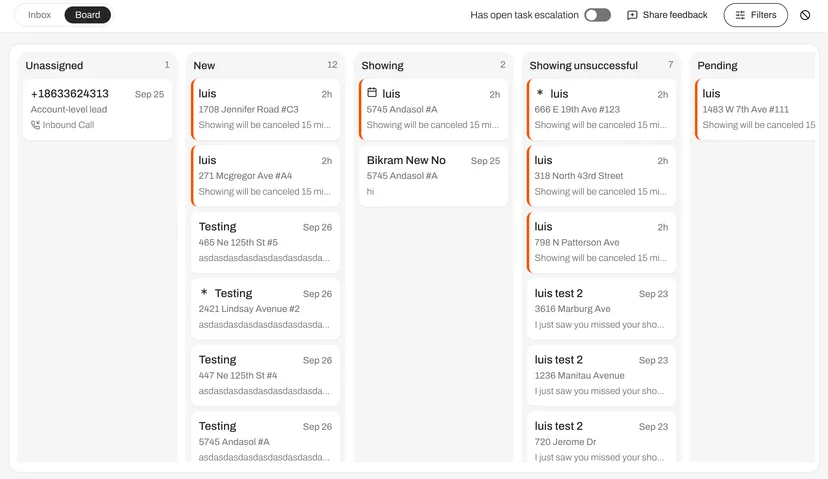
The Board is where you work the pipeline. Every prospect sits in a lane based on where they are in the leasing process. The pipeline goes from New and Showing through to Application approved and Moved in. RentEngine moves the card for you when the prospect's status changes, so there is nothing to drag. The chat opens right next to the Board, and Cmd + Enter (Ctrl + Enter on Windows) sends your reply and jumps straight to the next prospect.

For a leasing agent starting the day with 20 unanswered messages, that means working through all of them from the keyboard, one after the other, without clicking back into a list.

Your selected conversation and any unsent drafts carry over when you switch between the two views.
5)

The new Command Center Inbox ranks the conversations that need you first
5)

The Board view shows every prospect in a lane by leasing stage, with the chat docked next to it.

Where to find it: Command Center > Inbox / Board Toggle on the top left

Buildium accounts can now sync from specific property groups instead of the whole portfolio

If you run several RentEngine accounts off one Buildium account, you can now choose which Buildium property groups you sync to each RentEngine account. That way, you only import the properties each account needs. Reach out to Support via chat to help you set this up.

Where to find it: Settings > Company

See fraud flag status for every prospect in the Prospect report

The Prospect report in Intelligence now includes a Fraud Flagged column. This shows whether a prospect has never been flagged, currently has an open fraud flag, or had one that was later resolved.

Where to find it: Intelligence > Reports > Fraud Flagged column.

💡 More on how Fraud Guard screens prospects → New Feature Release: Fraud Guard

Edited notes moved out of the Archive

When you edit a note, you'll now see a "See Edits" link directly under it. Click it to expand every earlier version in place.

If you edit a note three times, you'll find all three earlier versions one click away, right where you'd look for them.

In the Archive, you'll now only see the notes and follow-ups someone on your team chose to archive. If you archive a note that has edits, you can still open its "See Edits" thread from there.

Where to find it: In the Command Center, click into a prospect to open the right-side panel. In Rental Applications, it shows up in the Notes column.

💡More on logging notes and follow-ups → Logging notes and manual follow-ups

Conditional Approval sends the applicant the condition you set

You can now approve an application with a condition attached and tell the applicant what that condition is in the same step.

Use the 'Notes' field to add additional conditions, e.g., a higher security deposit, a co-signer, or additional documents that you are still waiting on.

You can then send the applicant a customizable email and text telling them what is needed.

The conditional approval can also push to your PMS.

Where to find it: Application review page > Take Action > Conditional Approval > complete the fields.

ID verification bypass request

If you have ID verification turned on, prospects who fail the check now see an ID verification bypass request option. That covers anyone with a paper or temporary ID, or no valid ID at all.

It asks them to photograph the document they have and check a box that confirms that they do not have a valid ID and would like to bypass the step.

You then get an email notification with the details and a direct link to open the application and bypass the step. RentEngine AI also escalates any text conversation to your team when a prospect says they cannot upload an ID or only have a temporary one.

Where to find it: Settings > Rental App Templates > select a template to edit > Reports > Identity Verification > Select Optional.

Billing dashboard shows the property owner

The Billing dashboard now includes an Owner column, so you can see which property owner is tied to each line item without opening the property.

Where to find it: Settings >** Billing.

Edit a note after it's saved

You can now edit a note after saving it, instead of deleting it and adding it again. Click the edit icon next to the archive button in the Manage notes drawer, and both the note text and the address become editable.

The previous version moves to Archive, so you keep the full history.

Where to find it: Notes & Follow-ups section in the Command Center and on a rental application review page.

Updated flooring type options

Property amenities now offer wood, marble, brick, ceramic, stone terrazzo, and other flooring types. This lets prospects filter listings to their preferred flooring type.

Where to find it: Properties > Take Action on a property > Edit Unit > Amenities.

Hide units from website and AI

You can now block a specific unit from showing up on your website listing widget and in AI results. This is useful for a generic application unit, i.e. a unit created just to hold a public application link rather than an actual vacancy.

Where to find it: Properties > find the property row > Take Action dropdown > Edit Unit > Syndication

Read-only API keys

A read-only API key can read your data but cannot create, edit, or delete anything. This is a good fit for a reporting tool or a data warehouse sync that only needs to be read from RentEngine.

Where to find it: Settings > Developer > API Keys > Create New API Key.

Customizable PMS Sync

You can now control your PMS sync at the field level. A "Customize Synced Fields" button in your PMS settings opens a field sync modal. Here you decide for each field, whether it syncs continuously, only on the initial import, or not at all. Fields set to sync continuously update every 10 minutes.

For a listing description you have rewritten in RentEngine, marking that field "only on the initial import" means your version sticks after the initial import. After that, it will not get overwritten the next time your PMS pushes an update.

Where to find it: Settings > Company > Customize Synced Fields.